
How to Create and Edit a Scheduled Subscription
Scheduling subscriptions is beneficial and gives firms more flexibility to send payment requests at a later date, but creates them today. It offers peace of mind to do the upfront work and have an invoice ready in drafts, while also preventing your client from seeing or paying it until the scheduled invoice date.
To get started, toggle the setting "on" (green) located in your Firm Settings, Invoice, Invoice Date. When the setting is enabled, advisors can set a future Invoice Date to schedule when invoices are delivered to clients. Clients cannot view, access, or pay the invoice until the Invoice Date. This allows advisors to prepare invoices in advance while controlling the exact delivery timing."

To receive notifications, be sure to adjust your settings for this as well located in your Account Settings, Emails and Notifications, Advisor Notifications for the Scheduled Invoices (for those published and a reminder).
Important: The ability to schedule a future invoice or subscription is managed by the Firm's Account Owner and may or may not be available.
How to Create a Scheduled Subscription
Follow the steps below to create a scheduled Subscription.
- Head to Subscriptions and Create New (add client), or start on your Client's profile located in the left sidebar under Accounts>Clients.
- Click your client's name, and click Create New at the top right corner.
-
Add a document if needed or applicable.
If a document is attached and sent via email, the client can sign. Subscriptions will only become available when the Invoice Date is met, but can be activated prior to the Start Date, but will only begin billing on the set Start Date.
If published without sending, the client can sign, but a reminder will need to be sent for it to be delivered. The Subscription will publish on the Invoice date and will allow your client to pay, which will begin billing on the set Start Date.
- Click Attach Invoice.
- Be sure the subscription box is blue and clicked.

- When selecting an Invoice date and Start Date, these differ in that the former is when the invoice is created and available, and the latter is the actual Start Date you want the invoice to be paid by your client. ( Note that the Start Date must be today, or a future date, and it cannot be before the Invoice Date. )
- Select a Frequency,
- Add +Add End Date, and the billing periods as needed for finite billing periods.
- Add the Date Range
- Accepted payment methods(checked means the client can pay with those)
- The amount per frequency period
- The Description of Services
- Add a fee calculator, or notes if applicable
- If you want to add an Upfront- One-time Invoice, click the box and complete that information.
- Click Continue and review the page. Click Preview to see the Subscription and or Upfront invoice if added.

If you choose "Publish without Sending Email," it won't send your client an email. If a document is attached, it will be available, but a reminder will need to be sent for it to go to the client. Subscriptions will be sent on the scheduled Invoice date. This is the modal you'll see:

If you choose "Send via Email through AdvicePay," it will send your client an email. If a document is attached, it will be available right away for them to sign. Subscriptions will be sent on the scheduled Invoice date. This is the modal you'll see:

How to Edit a Scheduled Subscription
Tip: The ability to edit the invoice is available as long as it is in the Upcoming (MM/DD/YYYY) status. Attached documents can be signed at anytime.
-
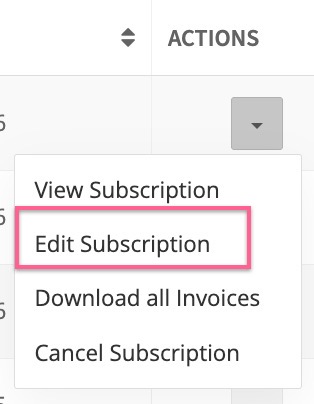
To edit a Subscription that is scheduled for a future invoice date, go to the client's profile page under their Subscriptions tab, or in the left side bar under Transactions, Subscriptions, then on the Subscription, click Edit Subscription.
- Next, the pop-up modal will present the Invoice information that can be edited.
- Note that the Due date must be after the Invoice Date. It can be the present date or a future date. The invoice date is the date it will be sent.
- If the Due Date is set for the present day (today), the Subscription will move from scheduled to published and will act as a regularly sent Subscription. The email will go to the client, allowing them to view and make the payment.
- If you have a document attached, editing the subscription will cause the document to be re-created in your signature provider. Any manual edits to the document will be lost due to this process. Please send the email or a reminder in the next modal after editing the subscription.
- If no document is attached, it will look the same without the yellow banner at the top.

- Send an email to your client if you had a document attached, as the old one is voided, or skip the email with a custom optional message.
